WhatsApp Business Setup Guide for Small Shops and Services
In this post
- Personal WhatsApp vs WhatsApp Business
- WhatsApp Business setup in seven steps
- Quick replies worth saving
- Labels: your simple sales pipeline
- Greeting and away messages
- A daily routine that keeps it under control
- Common WhatsApp mistakes that cost sales
- When to move to the WhatsApp Business API
- Your next step
In many countries, including here in Pakistan, customers would rather send a WhatsApp message than fill in a contact form or call. That's great for sales, until your personal phone is full of unanswered chats, you can't find yesterday's order and three staff members are replying to the same person.
A proper WhatsApp Business setup fixes most of that in an afternoon. In this guide I'll walk you through the profile, catalogue, quick replies, labels and away messages, and then share a simple daily routine that keeps the inbox under control.
I'll focus on the free WhatsApp Business app, because that's what most small shops use. I'll also explain when it's time to look at the paid API instead.
Personal WhatsApp vs WhatsApp Business
The Business app is free and looks almost the same, but it adds the tools a shop needs.
| Feature | Personal app | Business app |
|---|---|---|
| Business profile (hours, address, website) | No | Yes |
| Product catalogue | No | Yes |
| Quick replies | No | Yes |
| Labels for chats | No | Yes |
| Greeting and away messages | No | Yes |
| Basic message statistics | No | Yes |
Features change from time to time, so check inside the app for what's currently available in your country.
WhatsApp Business setup in seven steps
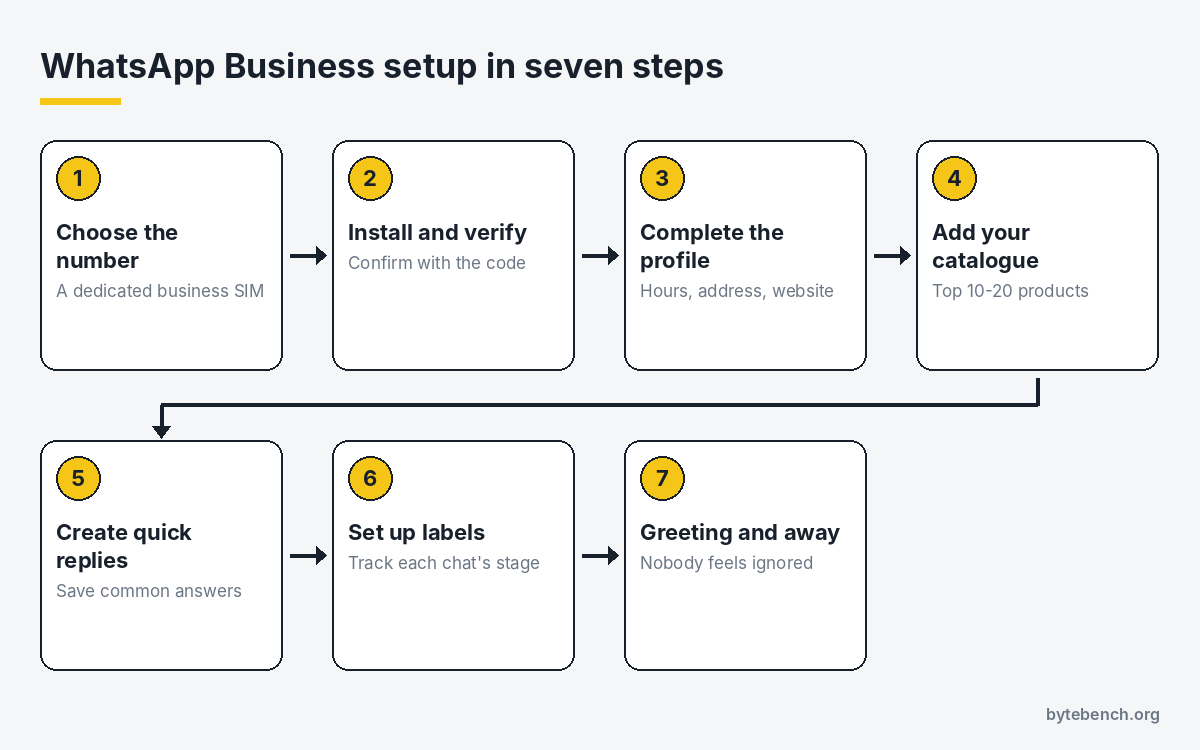
- Choose the number. Ideally a dedicated business SIM, not your personal number. If staff change, the number stays with the business.
- Install the app and verify. Download WhatsApp Business, enter the number and confirm with the code.
- Complete the profile. Business name, category, short description, address, opening hours, email and your website link. A complete profile looks more trustworthy.
- Add your catalogue. Upload your top 10–20 products with a clear photo, price and short description. Customers can browse without asking "price?"
- Create quick replies. Save your most common answers (more on this below).
- Set up labels. Colour-code chats such as New enquiry, Awaiting payment, Order ready and Completed.
- Turn on greeting and away messages. So nobody feels ignored outside opening hours.
Quick replies worth saving
Quick replies let you type a shortcut like /hours and send a full message. Start with these:
/hours– opening times and location pin/price– how to see prices in the catalogue/delivery– delivery areas, times and charges/pay– accepted payment methods/return– your return or exchange policy in two sentences/thanks– a friendly closing message after an order
Keep each one under 60 words. Long walls of text get ignored on a phone screen.
Labels: your simple sales pipeline
Labels are the most underused feature. Used well, they turn your chat list into a basic pipeline.
| Label | Meaning | Action |
|---|---|---|
| New enquiry | Customer asked a question | Reply within your target time |
| Quote sent | Price or options shared | Follow up after 24 hours |
| Awaiting payment | Customer agreed, not paid yet | Gentle reminder |
| Order ready | Ready for pickup or dispatch | Send pickup or tracking details |
| Completed | Sale done | Ask for a review a few days later |
At the end of each day, filter by "Quote sent" and follow up. That one habit wins back sales that would otherwise go quiet.
Greeting and away messages
Your greeting message goes to new customers or people who haven't messaged in a while. Keep it short: thank them, say what you can help with and point to the catalogue.
Your away message runs outside your hours. Say when you'll reply ("We're open again at 10am") rather than a vague "We'll get back to you soon."
A daily routine that keeps it under control
- Morning: clear overnight messages, oldest first.
- Midday: check "Awaiting payment" and send reminders.
- End of day: follow up "Quote sent", move finished chats to Completed.
- Weekly: look at message stats and update quick replies that people keep asking follow-up questions about.
If you have a team, decide who owns the WhatsApp inbox at each hour. Two people answering the same chat confuses customers. My guide to remote customer support for small businesses covers handovers in more detail, and if you also send invoices over chat, my free invoice generator makes a clean PDF in a minute.
Common WhatsApp mistakes that cost sales
After helping a few teams tidy up their chats, I see the same problems again and again:
- Sending voice notes for prices. Customers want to scan a price quickly. Type it, or point to the catalogue.
- Leaving the catalogue out of date. If a customer asks for an item that's shown but sold out, trust drops. Hide items when stock runs out.
- No follow-up. Many enquiries go quiet simply because nobody checked back the next day. The "Quote sent" label solves this.
- Mixing personal and business chats. It's easy to miss a customer between family messages, and it looks unprofessional when you post personal status updates.
- Broadcasting too often. Broadcast lists are useful for genuine updates, but daily promotions get you muted or blocked. Once or twice a month is plenty for most shops.
Fixing these costs nothing and usually makes the inbox calmer within a week.
When to move to the WhatsApp Business API
The free app works well for one phone and a small team. Look at the paid WhatsApp Business Platform (the API) through an official provider when you need several agents on one number, connection to your website or CRM, automated order updates or large volumes of messages. It costs money per conversation and needs some technical setup, and pricing varies by country, so get quotes before deciding.
Your next step
Set aside one afternoon this week, complete the seven steps and save your first six quick replies. If you'd like help building support processes around WhatsApp, my customer support service is a good place to start.
Frequently asked questions
Is WhatsApp Business free?
The WhatsApp Business app is free to download and use. The WhatsApp Business Platform (API) is a separate, paid service charged by conversation, and prices vary by country.
Can I use my existing number for WhatsApp Business setup?
Yes, you can move an existing number to the Business app, and your chats can usually be transferred. Back up your chats first, and consider a dedicated business number for the long term.
Can more than one person use the same WhatsApp Business account?
The app supports linking a few devices, so a small team can share it. For larger teams with many agents, the API with a shared inbox tool is a better fit.
How fast should I reply on WhatsApp?
Customers expect faster replies on chat than email. Aim to reply within an hour during opening hours, and use an away message so nobody waits without knowing why.